How to use Search with Finder | Galaxy S26 Series | Samsung

'TITLE' is an excellent Science & Technology clip presented by Samsung, which has gathered 1.9K views and 137 likes.
This is the official video guide on how to use Search with Finder on Galaxy S26 Series. Ever been lost trying to find information on your phone? Say goodbye to the struggle, say hello to Search with Finder 🔎 Search with Finder instantly pulls together information scattered across your apps into one place—from flight schedules and doctor appointments to so much more ✨ Ideal for checking and saving what matters, keeping others in the loop and staying on top of your day—all with one quick search, within seconds 👏 Learn more: http://smsng.co/S26_Finder_How-to_yt
00:00 Intro 00:14 Save events to the calendar 01:00 Share recalled data
Follow these simple steps to use Search with Finder: Step 1: Find and tap ‘Finder’. Enter simple keywords into the search bar. Step 2: Check the recalled data to review relevant information at a glance. Step 3: Tap ‘Create event’ on the recalled data, then tap ‘Save’ to add the event to your calendar instantly. Step 4: Tap ‘Share’, choose who to share the recalled data with, then tap ‘Send’ to easily keep others in the know.
Q: Should I use exact words to get search results? A: No, Search with Finder smartly brings together scattered information into one place, even if you use only a few simple words. Q: Do I need to manually fill in the details when adding events to my calendar from the recalled data? A: No, Search with Finder has the information automatically filled in, letting you review the details and save the events in a snap.
#GalaxyAI #GalaxyS26Ultra #GalaxyS26 #Samsung
Related Videos

NASA’s Artemis III Announcement (Official NASA Trailer)
NASA
369.0K views

PlayStation - Official 27" Gaming Monitor Trailer
IGN
31.7K views

Hands On With PlayStation's New Fight Stick, Gaming Monitor, & Speakers
IGN
38.3K views

Google Marketing Live 2026
Google Ads
41.0K views

PS5 Pro - Official Every Detail Matters Trailer
IGN
70.5K views
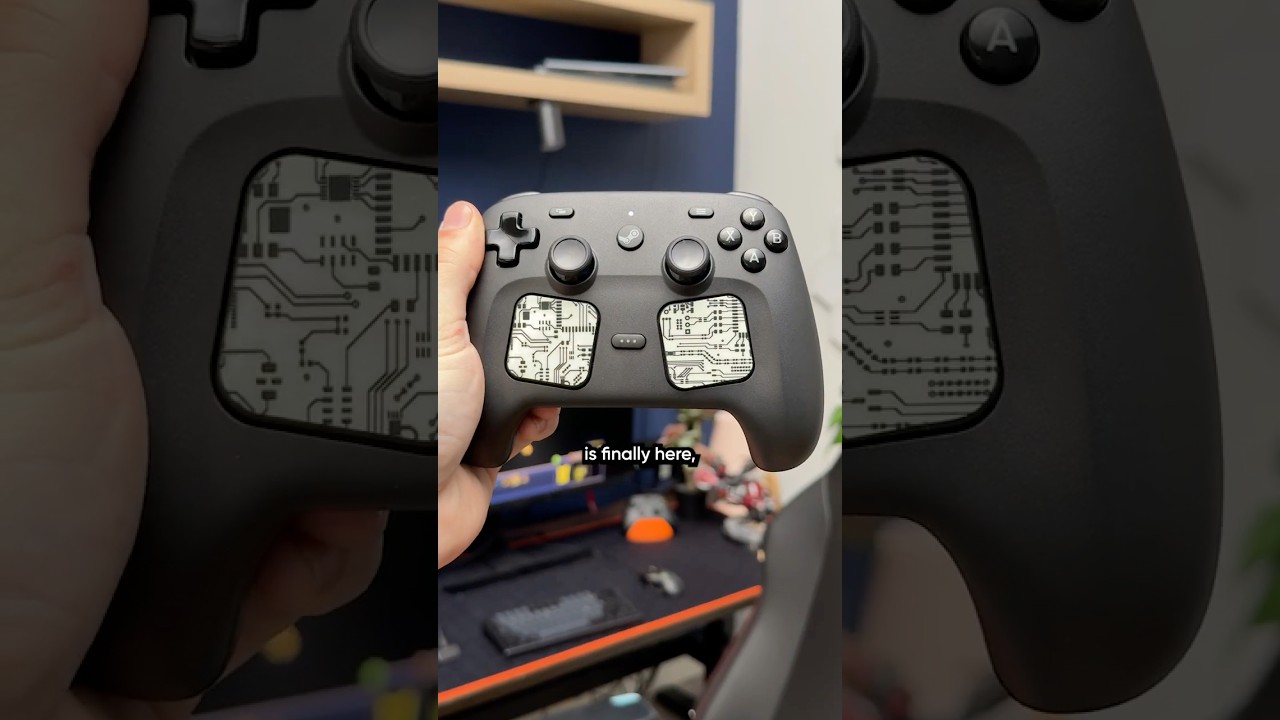
The Valve Steam Controller is Here!
Linus Tech Tips
94.0K views

Steam Controller - Official Overview and Quick Start Guide
IGN
40.9K views

Steam Controller Review
IGN
135.4K views
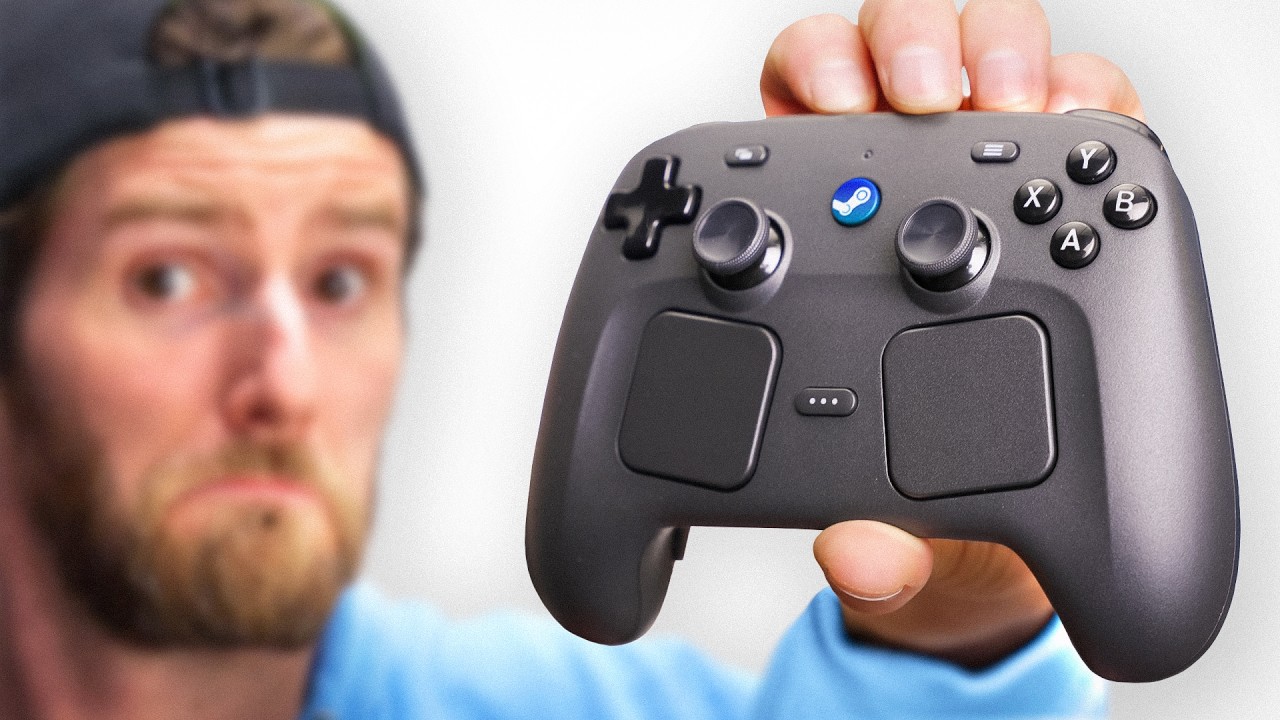
The Steam Controller is Here
Linus Tech Tips
1.2M views

The Year of Windows Humiliation
Linus Tech Tips
929.9K views