How to easily connect and use | Galaxy Buds4 Series | Samsung

The channel Samsung presents 'How to easily connect and use | Galaxy Buds4 Series | Samsung', a notable Science & Technology video with 1.8K views and 137 reactions.
This is the official video guide on how to easily connect and use Galaxy Buds4 and Buds4 Pro on a Galaxy smartphone running One UI 8.5. Learn about Easy Pairing and seamless control through One UI, with quick access to Galaxy Buds from the Quick panel. Pair your Galaxy Buds instantly, quickly access the menu via the Quick panel wherever you are, and store sound settings per-app, with no need to adjust them every time. Learn more: http://smsng.co/Buds4_Set-Up_How-to_yt
00:00 Intro 00:09 Easy Pairing 00:43 Galaxy Buds settings 01:41 Controls in Quick Panel
Q: What is Easy Pairing? A: Easy Pairing connects Galaxy Buds4 Series instantly without extra apps. Open the Charging Case near a Samsung Galaxy device to see a pairing pop-up. Tap once to start using your earbuds. Q: Do I need a separate app to control Galaxy Buds4 Pro? A: On Samsung Galaxy devices running One UI 8.0 or later, control settings directly from the Quick panel or device settings. For Samsung Galaxy devices running on earlier versions of One UI or another compatible Android devices, configurations can be found in the Galaxy Wearable app.
Follow these simple steps to easily connect and use Galaxy Buds4 and Buds4 Pro: Easy Pairing Step 1: Open the Charging Case near your Galaxy smartphone. Step 2: Tap 'Connect' when the pairing pop-up appears. Step 3: Follow the on-screen tips and guides to complete pairing. Galaxy Buds settings Step 1: Open Settings on your Galaxy smartphone. Step 2: Tap the name of your Galaxy Buds to view and manage your earbuds. Step 3: Check the battery status, switch noise control modes, and adjust controls and sound settings. Controls in Quick panel Step 1: Open the Quick panel. Step 2: Press and hold the Galaxy Buds icon on the volume bar. Step 3: Adjust volume, change noise control modes, and manage per-app sound settings.
#GalaxyAI #GalaxyBuds4Pro #GalaxyBuds4 #Samsung
Related Videos

NASA’s Artemis II Daily News Conference (April 5, 2026)
NASA
133.5K views

NASA's Artemis II L-1 Countdown Status News Conference (March 31, 2026)
NASA
84.9K views

Around the Moon for All Humanity: Artemis II (Official Launch Trailer)
NASA
1.3M views

NASA's Artemis II L-2 Countdown Status News Conference (March 30, 2026)
NASA
191.2K views

NASA's Artemis II L-3 Countdown Status News Conference (March 29, 2026)
NASA
90.9K views
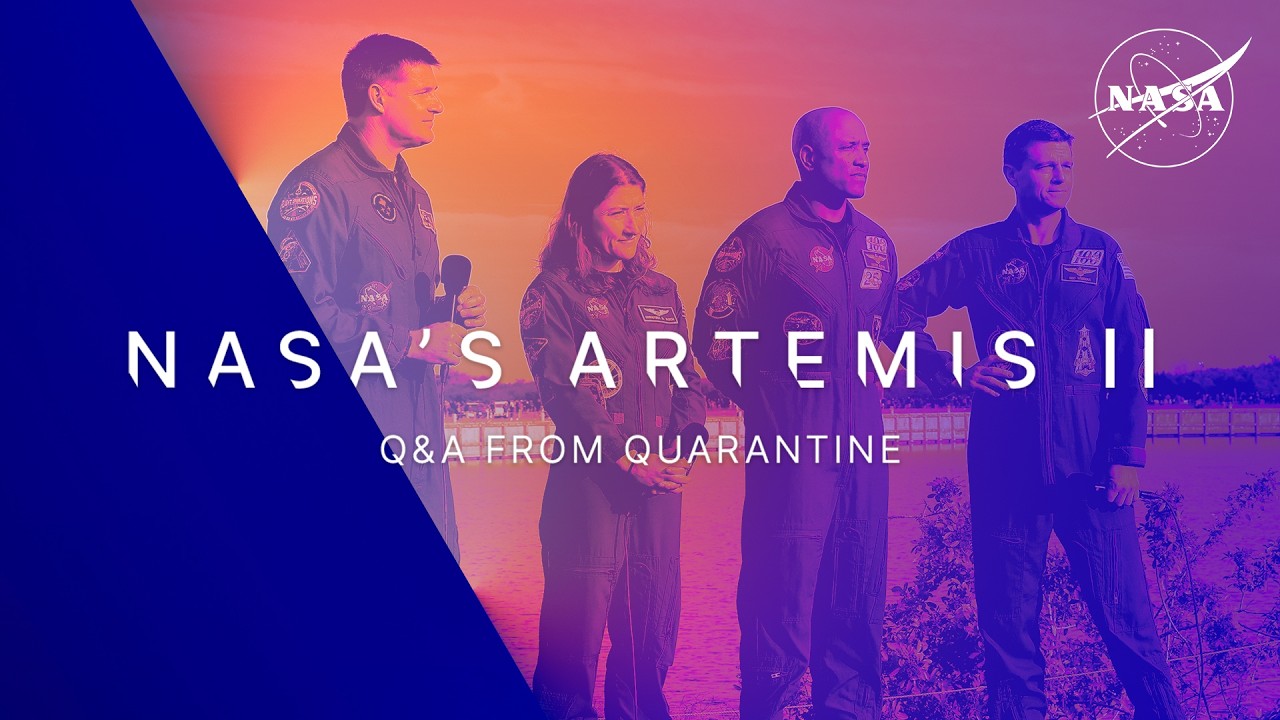
NASA's Artemis II Q&A from Quarantine
NASA
95.8K views

NASA's Artemis II Crew Arrives for Launch
NASA
382.0K views

What It Takes
NASA
133.2K views

Ignition: NASA's Plan for The Moon
NASA
128.2K views

LEGO Smart Play x LEGO Star Wars - Official Trailer
IGN
59.5K views